DMX in Scope: From real-time AI video pixels to photons
DMX in Scope connects your lighting console to real-time AI video generation. Control Scope's parameters from any Art-Net source, map DMX channels to generation settings, and unify your visuals and lighting from a single desk.
And just like that, we've reached Day 5 of Launch Week, the final one.
This week, we've gone from local video sharing with Spout and Syphon, to network video with NDI, to software control with OSC, and all the way to physical control with MIDI.
Today, we close the week where the digital meets the physical. DMX connects Scope to the stage.
DMX is the protocol that controls stage lighting. Every venue, every concert, every theater production, every festival with programmable lights runs on DMX. Lighting consoles from MA, ETC, Avolites, and others all speak it. And now your lighting desk can control Scope's AI video generation in real time, alongside the fixtures it's already running.
What DMX brings to the picture
If you're a lighting designer or a technical director, you already think in DMX channels. Faders on your console map to channels, channels map to fixture parameters, and the whole thing runs at show speed. Scope now fits into that same mental model.
Scope receives DMX data over Art-Net, which is the standard protocol for sending DMX over Ethernet. Your lighting console sends Art-Net packets over the network, and Scope listens for them on the standard Art-Net port (UDP 6454). You map DMX channels to Scope parameters, and the console controls AI video generation the same way it controls your lights.
The mapping works like this: each DMX channel sends a value from 0 to 255. Scope scales that value to the parameter's actual range automatically. So channel 1 sending 0-255 might map to noise scale 0.0-1.0, while channel 2 sending 0-255 maps to transition steps 0-100. The scaling is handled for you.
Updates run at approximately 60 Hz, which matches typical console refresh rates. Scope throttles incoming DMX to prevent flooding, and skips duplicate values so only actual changes get processed.
What this means in practice
For a lighting designer running a show, your console becomes a unified control surface for both lighting and AI video. Program a cue that dims the stage lights and simultaneously shifts Scope's generation toward darker, more atmospheric visuals. Build a chase that pulses the lights and the AI output together. The same faders that control your fixtures now control the AI.
Live production teams working on concerts or events can integrate Scope into their existing show control workflow. The lighting console is already the central hub. Adding Scope as another "fixture" on the network means the LD can control AI visuals without learning new software or adding another control surface to the desk.
Immersive installations where lighting and video need to feel like one unified environment get a direct connection between the two. Map your room lighting channels and your Scope generation channels on the same console, program them together, and the space responds as a whole.
Venue operators and technical directors who need reliable, repeatable show control can program Scope parameters into their cue lists alongside traditional fixtures. DMX is the protocol they already trust for show-critical systems.
What you can control
Scope exposes its numeric parameters for DMX mapping. The parameters that are always available include:
- Noise scale (0.0-1.0) - control generation intensity
- VACE context scale (0.0-2.0) - adjust guidance strength
- Transition steps (0-100) - how many steps to blend between prompts
- Cache attention bias (0.01-1.0) - how much the generation relies on previous frames
Each loaded pipeline adds its own numeric parameters to the mappable set. You configure the mappings in Scope's settings panel, choosing which universe and channel controls which parameter.
Getting started
- Open Scope and go to Settings > DMX tab
- Toggle DMX Input on
- Confirm the port (default is 6454, the standard Art-Net port)
- Under Channel Mappings, add your mappings: select a universe, channel number (1-512), and the parameter you want to control
- Click Save to persist your configuration
- Point your lighting console's Art-Net output at Scope's IP address and port
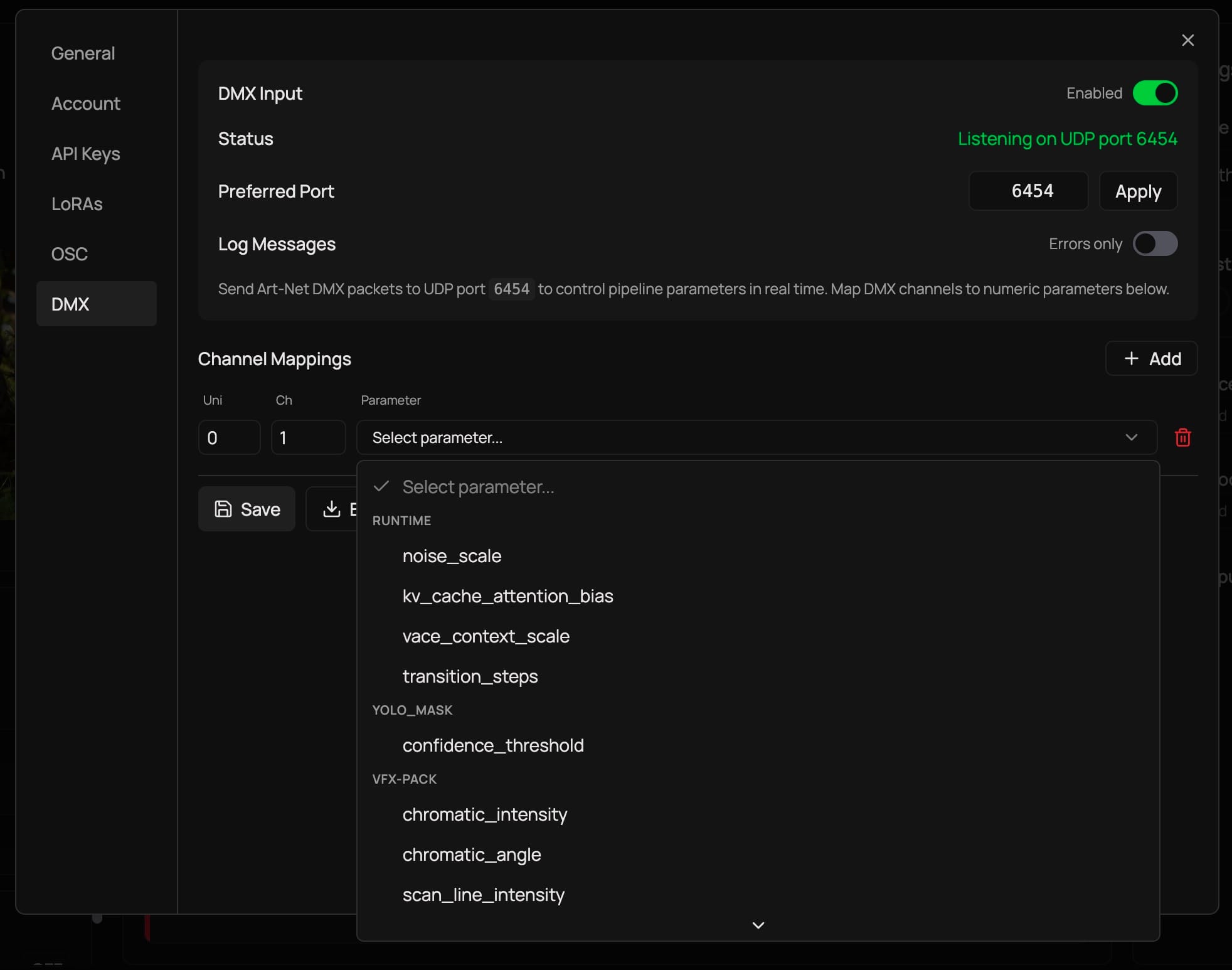
Scope will show "Listening on UDP port 6454" when it's ready. If port 6454 is taken by another application, Scope tries 6455, 6456, and 6457 as fallbacks.
You can toggle Log Messages to All to see every incoming DMX update in real time, which is useful for verifying your mappings are working correctly. The configuration persists between sessions, so you only need to set it up once per show.
You can also export and import your DMX configuration as JSON, making it easy to share setups between machines or back up your show configs.
A full week of integrations
And with this, we are wrapping up our Launch Week 01.
Here's what we covered:
Monday - Spout and Syphon moved your video between apps on the same machine at GPU speed. The foundation.
Tuesday - NDI took your video across the network to any machine, any platform. With audio and metadata along for the ride.
Wednesday - OSC gave you float-precision parameter control over the network, from tablets, TouchDesigner, or custom scripts.
Thursday - MIDI put physical controllers in your hands. Knobs, faders, pads, all learn-mapped to generation parameters.
Friday - And today, DMX connected Scope to the stage. Your lighting console now controls AI video alongside your fixtures.
Together, these five protocols make Scope a bridge between real-time AI video and the tools creative technologists, VJs, lighting designers, and installation artists already work in. Scope fits into your workflow rather than asking you to change it.
While these integrations are powerful and the team is building very rapidly, we understand that we are just getting started.
If you build something with these integrations, we'd love to see it. Drop by the Discord and share what you're working on.
Links
- Launch Week 01 - The full week in one page
- Day 1: Spout and Syphon
- Day 2: NDI
- Day 3: OSC
- Day 4: MIDI
- Download Scope - Get the latest version
- GitHub - Star the repo and check out the source
- Discord - Join the community